
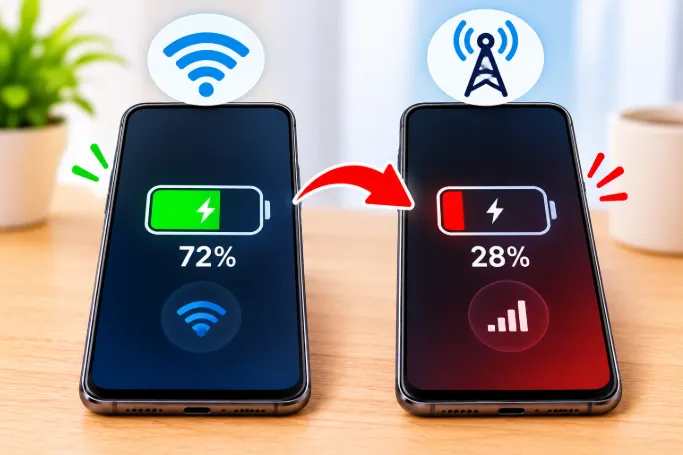
You switch off Wi-Fi, browse for an hour on mobile data, and watch your battery fall twice as fast as it did at home. Nothing changed except the connection, so what is going on?
The short answer: mobile data makes your phone's cellular radio work much harder than Wi-Fi does. The radio has to talk to a cell tower that may be kilometers away, while Wi-Fi only talks to a router a few meters away. The weaker or more distant that tower connection is, the more power your phone burns to keep it alive.
But that is only part of the story. Most articles stop there and leave you with the useless advice to "turn on battery saver." This guide explains what is really happening inside your phone, how to confirm which cause applies to you, and which fixes actually work.
Image suggestion (featured image): A phone showing a low battery icon next to a mobile signal icon with one bar. Alt text: Phone battery draining on weak mobile data signal.
Why Mobile Data Uses More Battery Than Wi-Fi
The Cellular Radio Has to Transmit Over Much Longer Distances
A home Wi-Fi router is usually within 5 to 15 meters of your phone. A cell tower can be hundreds of meters to several kilometers away. To be heard at that distance, your phone's power amplifier has to transmit at a much higher power level. Higher transmit power means higher battery draw, and this is the single biggest reason mobile data costs more energy.
Your Phone Constantly Adjusts Its Power Based on Signal
Your phone and the tower continuously negotiate how loud your phone needs to "speak." When signal is strong, the phone transmits quietly. When signal drops, the tower tells the phone to raise its transmit power. You never see this happening, but your battery does.
Wi-Fi Is Built for Short, Efficient Bursts
Wi-Fi chips are designed to download data quickly and go back to sleep. Cellular modems have a more complex job: they stay registered to the network, listen for calls and messages, measure neighboring towers, and manage data sessions all at the same time. Even when you are not actively using data, the modem is busier than a Wi-Fi chip would be.
The Hidden Reasons Most Websites Don't Explain
Weak Signal Is a Bigger Drain Than Heavy Data Use
Many people assume that streaming video is what drains the battery. In reality, a phone with one bar of signal can use more power doing nothing than a phone with full bars streaming music. Poor signal forces higher transmit power, repeated retries, and constant tower searching.
This is why your battery can drop noticeably during a train ride, in a basement, in a lift, or inside a concrete building even if you barely touch the phone.
Tower Handovers While You Move
When you travel, your phone has to hand your connection from one tower to the next. Each handover involves signaling, measurement, and re-registration. In areas with patchy coverage or overlapping towers from different bands, the phone may bounce between towers repeatedly. Commuters, travelers, and people in dense cities often see faster drain for exactly this reason.
5G Can Use More Power Than 4G
On many networks, 5G is not a standalone network. It works alongside 4G (called non-standalone mode), which means your phone keeps two radio connections active at once. The 5G modem also processes much wider channels and higher speeds. The result is higher power use, especially when 5G coverage is weak or flickering between 4G and 5G.
If your phone shows the network icon switching between 4G and 5G repeatedly, that switching itself is a drain.
Your Phone Heats Up and Heat Wastes Energy
A struggling modem generates heat. A warm phone also charges and discharges less efficiently, and the system may throttle the processor, which can make background tasks run longer. If your phone feels warm on mobile data but not on Wi-Fi, the modem is working too hard. The same heat problem is explained from the charging side in our guide on why a phone gets hot while charging even with the original charger.
Apps Behave Differently on Mobile Data
Some apps sync photos, back up chats, and download updates only on Wi-Fi. Others have no such limit. When you leave Wi-Fi, apps that were previously idle may begin syncing over cellular, and every sync wakes the radio. Messaging apps, social media, cloud storage, and map apps are the usual culprits.
If you notice odd activity, it may also be an app running quietly without showing on screen. We covered that scenario in detail in our post about an app that opens in the background but not on the screen.
Wi-Fi Calling and Wi-Fi Assist Settings Change the Picture
On iPhone, Wi-Fi Assist automatically switches to mobile data when your Wi-Fi is weak. You may think you are on Wi-Fi while your phone is quietly using cellular. On Android, Adaptive Wi-Fi or Smart Network Switch can do something similar. This is one reason people feel their battery drains unexpectedly even when they believe they are on Wi-Fi.
Dual SIM and eSIM Add Extra Radio Load
A phone with two active SIM cards has to monitor two networks. Even if you only use one for data, the second SIM still searches for signal, registers with its tower, and listens for calls. If one SIM has weak coverage, the drain gets worse.
Hotspot Use Is Almost Always the Worst Case
Sharing your mobile data with a laptop or another phone forces the modem to run at high activity continuously, while also running the Wi-Fi radio as an access point. If the battery drains very fast during tethering, that is normal and not a fault.
How to Check If Weak Signal Is Draining Your Battery
This is the step almost no guide shows you, and it is the quickest way to know whether the problem is your signal or something else.
Check the Battery Usage Screen for Cellular Entries
On Android, open Settings, then Battery, then Battery usage. Look for Mobile network standby, Cell standby, or Mobile radio active. If this entry sits near the top, the modem is the main drain.
On iPhone, open Settings, then Battery, and review the app list. iPhone does not show a modem entry directly, but you can check Cellular under Settings to see which apps used the most data. High data plus high battery use points to apps syncing over cellular.
Menu names differ between Samsung, Xiaomi, Pixel, OnePlus and other Android brands, so use the search bar in Settings and type "battery usage" or "SIM status" if you cannot find an option where described here.
Image suggestion: Screenshot of an Android battery usage screen showing Mobile network standby near the top. Alt text: Android battery usage screen with mobile network standby listed.
Check Your Actual Signal Strength in Numbers
Signal bars are not very accurate. The real measurement is in dBm.
- Android: Settings, About phone, SIM status (some brands call it Status information; on Samsung it is usually under Status information, then SIM card status). Look for Signal strength, which shows a dBm value. The exact path varies by brand.
- iPhone: Open the Phone app, tap Keypad, dial *3001#12345#* and tap Call. In Field Test mode, look for RSRP, often under Cell Info or the LTE or 5G NR section. The layout changes with iPhone model, iOS version and carrier, and some carriers do not show every value. On the latest iOS versions, if the dial code does nothing, open the Shortcuts app, add the Open App action and choose Field Test. If you use two SIMs, make sure you are reading the one that carries your data.
Use these ranges as a rough guide for 4G (RSRP). Exact thresholds vary by band, phone model and carrier, so compare readings in different places instead of treating them as a strict score:
- Better than -80 dBm: excellent
- -80 to -90 dBm: good
- -90 to -100 dBm: fair
- -100 to -110 dBm: poor, expect noticeable drain
- Worse than -110 dBm: very poor, expect heavy drain
If your reading is in the poor range where you spend most of your time, no setting will fully fix the battery drain. You are fighting physics.
Image suggestion: Screenshot of an iPhone Field Test screen with the RSRP value highlighted. Alt text: iPhone Field Test mode showing RSRP signal strength in dBm.
Run a Simple One-Hour Comparison Test
Charge to 100 percent, set the same screen brightness, and keep the screen off for one hour. Do this once on Wi-Fi and once on mobile data in the same location. If mobile data loses far more battery with the screen off, the cause is the modem or background sync, not your screen or apps in active use.
How Much Extra Drain Is Normal?
A small difference is normal. Mobile data with good signal may cost a little more battery than Wi-Fi, but you should not feel it dramatically. If your battery loses a big chunk in an hour of light use on cellular, or if the percentage seems to fall in sudden steps, something is off.
Sudden jumps in the battery percentage are often a calibration or battery health problem rather than a data problem. If that sounds familiar, read our explanation of why a phone battery drops suddenly from 50 to 20 percent.
Settings That Actually Reduce Battery Drain on Mobile Data
Switch From 5G to 4G When Signal Is Weak
If your 5G signal flickers, set your preferred network type to 4G or LTE. On many phones you will find this under Settings, Mobile network, Preferred network type. Some phones offer a smart option such as 5G Auto or Smart Data Mode that only uses 5G when it will actually help. Use that if available.
Image suggestion: Screenshot of the Preferred network type screen with 4G or 5G Auto selected. Alt text: Preferred network type settings to switch from 5G to 4G.
Turn On Wi-Fi Calling
If you are in a building with poor cellular signal but decent Wi-Fi, Wi-Fi calling moves your calls and texts to Wi-Fi so the modem can relax. It makes a noticeable difference indoors.
Restrict Background Data for Heavy Apps
Go to your data usage screen, find the apps using the most cellular data in the background, and restrict them. On Android, use Background data or Data saver. On iPhone, use Low Data Mode under Cellular Data Options and turn off Background App Refresh for apps that do not need it.
Image suggestion: Screenshot of Data saver on Android or Low Data Mode on iPhone. Alt text: Data saver and Low Data Mode settings to reduce background mobile data.
Turn Off Wi-Fi Assist
On iPhone, scroll to the bottom of Settings, Cellular, and turn off Wi-Fi Assist if you want predictable battery behavior at home.
Switch Off Unneeded Location Services
GPS and location checks use mobile data to assist positioning. Set location access to While Using for most apps and turn off frequent location polling for apps you rarely open.
Use Airplane Mode in Dead Zones
If you know you will be in an area with no coverage, such as a basement or a remote road, turn on airplane mode. A phone that endlessly searches for a signal can drain faster than a phone with the screen on. Turn it off when you are back in range.
Disable the Second SIM If You Do Not Need It
If you are not using the second SIM, switch it off in SIM settings. This removes one of the two networks the phone has to monitor.
Update Your Phone and Carrier Settings
Modem firmware and carrier settings are updated through system updates. Bugs in modem software can cause abnormal power use. Install pending system updates and, on iPhone, check for a carrier settings update under Settings, General, About.
Reset Network Settings as a Last Fix
If your drain started suddenly after a SIM change, travel, or update, reset network settings. This clears corrupted APN, VPN, and network profiles. You will need to re-enter Wi-Fi passwords afterward.
When the Problem Is Not Mobile Data
Sometimes mobile data is just where you notice a problem that already existed.
An Aging Battery Makes Every Drain Worse
A worn battery cannot deliver power efficiently under load. Cellular use is a high load, so a weak battery reveals itself there first. Check battery health in your settings. If capacity is well below normal, replacement will help more than any setting.
Charging Habits Can Change Battery Behavior
How you use your phone while charging affects long-term health. See our guide on whether using the phone while charging reduces battery life if you want to protect the battery over time.
A Faulty SIM, Tray, or Modem
If the drain is severe, the phone gets hot with the screen off, and signal drops randomly, a damaged SIM or loose SIM tray can be the cause. Try another SIM or reseat the SIM in the tray. If the problem remains with a different SIM, the modem hardware may be at fault and the phone should be checked by a service center.
Quick Troubleshooting Checklist
- Check the battery usage screen for mobile network standby.
- Check actual signal strength in dBm.
- Switch from 5G to 4G if signal flickers.
- Turn on Wi-Fi calling when indoors.
- Restrict background data for the top data-using apps.
- Disable the unused SIM.
- Update the system and carrier settings.
- Reset network settings if nothing else works.
- Check battery health.
- Test with a different SIM if drain stays extreme.
Frequently Asked Questions
Is it normal for battery to drain faster on mobile data than Wi-Fi?
Yes, a small difference is normal because the cellular radio uses more power than Wi-Fi. A large difference, especially with the screen off, usually points to weak signal, background syncing, or a network setting that needs adjusting.
Why does my battery drain even when mobile data is on but I am not using the phone?
The modem stays connected to the network, checks nearby towers, and receives background data from apps. In weak signal areas this standby activity becomes much heavier and can drain the battery overnight.
Does turning mobile data off save battery?
It does, because the modem no longer maintains a data session and apps cannot sync in the background. However, you will miss notifications from apps that rely on data. Use Low Data Mode or background restrictions if you want a balance.
Does 5G drain more battery than 4G?
Often yes, especially when 5G coverage is weak or your phone keeps switching between 4G and 5G. In strong 5G areas the difference can be small, and downloads finish faster, which partly offsets the extra power.
Why does my battery drain fast only when I travel?
Travel causes frequent tower handovers and exposes your phone to weak signal areas such as highways, trains, and tunnels. Both force the modem to work harder.
Why does my phone get warm when using mobile data?
The modem and power amplifier produce heat when signal is weak or when 5G is active. Direct sunlight and heavy use, such as hotspot or video calls, increase it further.
Does airplane mode with Wi-Fi on save battery?
Yes. Airplane mode shuts down the cellular radio completely, so Wi-Fi-only use becomes much lighter on the battery. This is useful in places with very poor signal.
Does Data Saver mode reduce battery drain?
It can help. Data Saver and Low Data Mode limit background data, which reduces how often the modem wakes up. The effect is most noticeable on phones with many chatty apps.
Can a bad SIM card drain the battery?
A damaged or poorly seated SIM can cause repeated network searching, which uses power. If the drain started after a SIM swap or tray change, try reseating or replacing the SIM.
How do I know if mobile data or the battery itself is the problem?
Run the one-hour screen-off test on Wi-Fi and on mobile data. If only the mobile data test shows heavy drain, the cause is cellular related. If both drain fast, check battery health or look for a runaway app.
Final Thoughts
Mobile data drains the battery faster mainly because your phone must work harder to stay connected to distant towers. The biggest factors are weak signal, 5G switching, background app activity, and heavy features such as hotspot. Once you identify which one applies to you, the fix is usually a simple setting rather than a new phone.
Start by checking your real signal strength and the battery usage screen. In most cases, those two checks reveal the cause within minutes.