
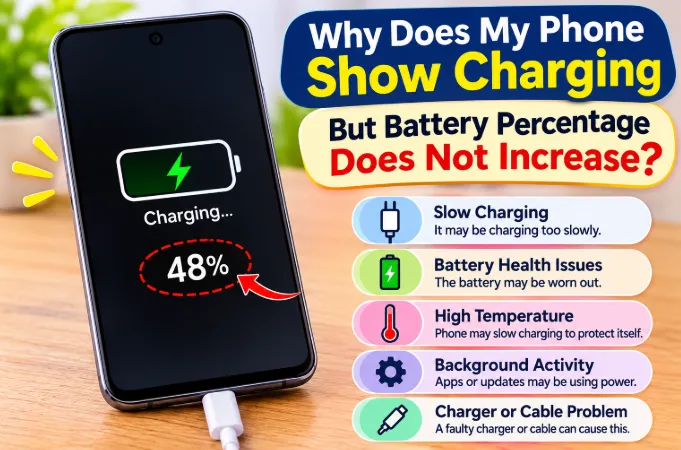
Your phone shows the lightning bolt and says "charging," but the number has sat at 23% for half an hour. Most articles say "restart your phone" or "change your cable" and stop there. In reality, there are more than ten possible causes, and each needs a different fix.
The charging icon only tells you a charger is connected. It does not tell you the battery is receiving net energy. Once you understand that, the problem becomes much easier to diagnose.
What "Charging" Actually Means on Your Phone
When you plug in, the phone detects voltage on the port and shows the charging icon, even if that voltage is weak.
Two things then happen at once:
- Power in: the charger supplies energy.
- Power out: your screen, processor, network radio, and apps consume energy.
The percentage only rises when power in is higher than power out. If they are roughly equal, the number freezes. If power out is higher, the percentage can drop while the phone says "charging."
So a phone that "charges but doesn't increase" is usually not broken. Either the input is too weak for what the phone is doing, or something is limiting the charge on purpose.
The 20-Minute Test That Shows Where the Problem Is
Run this before reading the causes. It narrows things down faster than guessing.
- Note your current percentage.
- Turn the phone fully off. If you can't, use airplane mode with the screen locked.
- Charge with the same cable and charger for 20 minutes.
- Turn the phone on and check the percentage.
Percentage went up: your charging hardware works. The phone is using as much power as the charger delivers while in use, or something is limiting charge only when it's on.
Percentage did not go up, even when off: the problem is the charger, cable, port, or battery.
Phone turns on at a much higher percentage than expected: your battery gauge was inaccurate. See the fuel gauge section below.
Why the Last 10% Takes So Long (and Looks Stuck)
Many "stuck percentage" searches are really about a phone sitting at 97, 98, or 99%.
Phones charge in two phases. In the first, current is high and the percentage climbs fast. Near full, the charging chip switches to a much lower current to protect the cell, which is called the constant-voltage phase. The last 10% can take as long as the first 50%.
If your phone sits at 97 to 99% for 20 to 40 minutes, that is normal behavior, not a fault. If it is stuck much lower, like 40%, read on.
Common Causes and Fixes
1. The Charger Is Too Weak for What the Phone Is Doing
This is the most common cause. A basic 5W charger gives about 1 amp at 5 volts. A phone with the screen on, mobile data active, and a video playing can use that much by itself.
Here is an illustrative example, not a measurement. Say a weak charger delivers a net 1,000mA to the phone, and video plus mobile data draws about 900mA. The net gain is around 100mA, which is roughly 2% per hour on a 5000mAh battery. You would never notice the rise.
What to do:
- Use the charger that came with the phone, or one with equal or higher wattage.
- Avoid video, games, and navigation while charging.
- Don't use old 5W chargers, or USB ports on TVs, cars, or old laptops.
Using your phone while it charges also affects long-term battery health, which I explain in this guide on using your phone while charging and battery life.
2. Fast Charger Connected but Charging at Basic Speed
Charging speed depends on a "handshake" between the phone, cable, and charger. If they don't support the same standard, the phone falls back to basic 5V charging. The icon still appears, but the net gain is tiny.
This is a common "original charger, good cable, still slow" situation. The standards include USB Power Delivery (PD), PPS, Qualcomm Quick Charge, and proprietary systems such as Warp, SuperVOOC, and others.
Typical mismatch examples:
- A high-wattage brand charger paired with a phone from another brand
- A PD charger without PPS used on a phone that needs PPS for top speed
- A fast charger used with a cable that lacks the required chip
What to do: Use the charger and cable from the phone's own box. If you buy a replacement, check that it supports your phone's specific standard, not just the wattage on the label.
3. Your Cable Is the Problem, Not Just Damaged
A cable can look fine and still limit charging.
- Thin-gauge wires cap how much current can pass.
- Missing identification chip: higher-wattage charging needs a chip in the cable. Cheap cables often lack it.
- Charge-only or poor data cables may be built to the lowest standard.
- Internal damage near the connector is very common. The outside looks perfect while one wire is broken.
Signs of a cable problem:
- Charging starts and stops when you touch the cable
- It works at a certain angle only
- It charges fine with a different cable
- A "slow charging" message appears
What to do: Test with a cable you know is good. If the cable is the cause, replace it with one rated for your phone's wattage.
4. You Are Charging From a Computer USB Port
A standard USB 2.0 port provides only 500mA at 5V, which is 2.5W. USB 3.0 gives around 900mA. Ports on monitors, keyboards, and hubs can be even weaker.
At 2.5W, a phone in use will rarely gain percentage and may lose it. This is why phones plugged into a PC often say "charging" for hours with no change.
What to do: Use a wall adapter. If you must use a computer, choose a rear port on a desktop and keep the screen off.
5. Software Limits That Pause Charging on Purpose
Modern phones deliberately hold the charge at a certain level to protect the battery, and the charging icon often stays on.
- iPhone: Optimized Battery Charging can hold at 80% until you are likely to unplug. Some models also have a charge limit setting.
- Samsung: Battery Protection can cap charging at 85% or another set level.
- Pixel: Adaptive Charging and Battery Protection slow or limit charging.
- Xiaomi, OnePlus, Oppo, and others: Many have overnight or optimized charging modes that pause around 80%.
If your phone stops at exactly 80, 85, or 90%, this is almost certainly the reason.
What to do: Open battery settings and turn off the protection feature when you need a full charge. Turn it back on afterwards, since these modes genuinely help battery lifespan.
6. "Charging on Hold" and "Charging Paused" Messages
People search these exact phrases, so here is what they mean.
On iPhone, "Charging on Hold" or a temperature warning means the phone paused charging on purpose, usually because of heat or an optimized charging schedule. Android phones show similar notices such as "Charging paused" or "Battery is warm."
The usual triggers are:
- The phone is too hot or too cold
- Moisture detected in the port
- A battery protection setting
- A suspected problem with the accessory
What to do: Unplug, let the phone return to room temperature, dry the port if needed, and reconnect. If the message repeats on a cool phone with a dry port, try another cable and charger.
7. Heat Is Pausing or Throttling the Charge
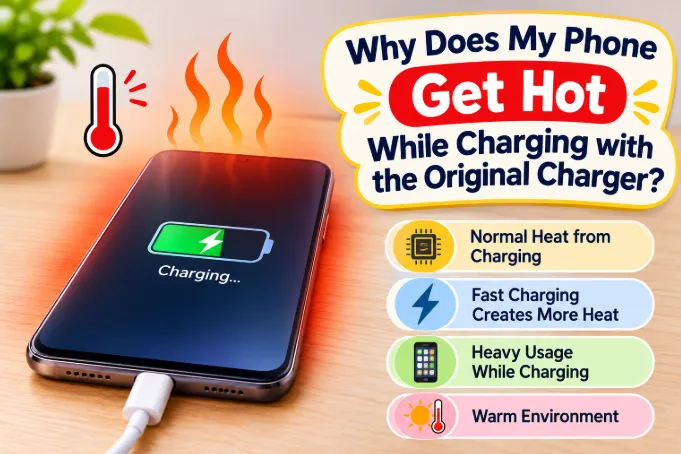
Lithium batteries are sensitive to temperature. When the phone gets too warm, the charging controller reduces current or pauses completely, even though the cable is still connected. When it cools down, charging resumes.
You may notice the phone getting warm, the percentage freezing, and then rising again later. That is a safety feature working properly.
Common triggers:
- Charging under a pillow or blanket
- Direct sunlight or a hot car
- A thick case that traps heat
- Gaming or recording video while charging
What to do: Remove the case, move to a cooler place, and stop using the phone. If heat keeps happening, this article on why a phone gets hot while charging even with the original charger covers the causes in detail.
8. Cold Weather Limits Charging Too
Most guides only talk about heat. Cold is just as important. Lithium batteries charge poorly below about 0°C (32°F), and phones restrict charging current to avoid damaging the cell.
If you charge a phone straight after bringing it in from a cold car or outdoors, the percentage may barely move at first. Cold also makes the battery gauge less accurate, so the reading can jump or drop.
What to do: Let the phone warm to room temperature for 15 to 30 minutes before charging. Don't warm it with a heater or hair dryer.
9. Moisture or Debris in the Charging Port
Many phones detect moisture in the port and restrict or block charging to prevent corrosion. Sometimes this happens even when you can't see any water. Humidity, sweat, or a splash earlier in the day can trigger it.
Pocket lint is the other issue. It compresses into the port over months, stops the plug from seating fully, and gives an unstable connection.
What to do:
- Turn the phone off and let it air-dry in a dry, ventilated place for a few hours.
- Gently clean the port with a wooden or plastic toothpick. Never use metal.
- Don't blow into the port, since breath adds moisture.
- Avoid putting the phone in rice, which doesn't help and can add dust.
10. Background Apps Using More Power Than the Charger Supplies
A single app can use a lot of power: a stuck sync, a social app refreshing, a game left open, or a hotspot being shared. Combined with an average charger, it can cancel out the charge entirely.
What to do:
- Check battery usage in settings and find the heaviest app.
- Force close it.
- Turn off hotspot, Bluetooth, and location temporarily.
- Restart the phone to clear stuck processes.
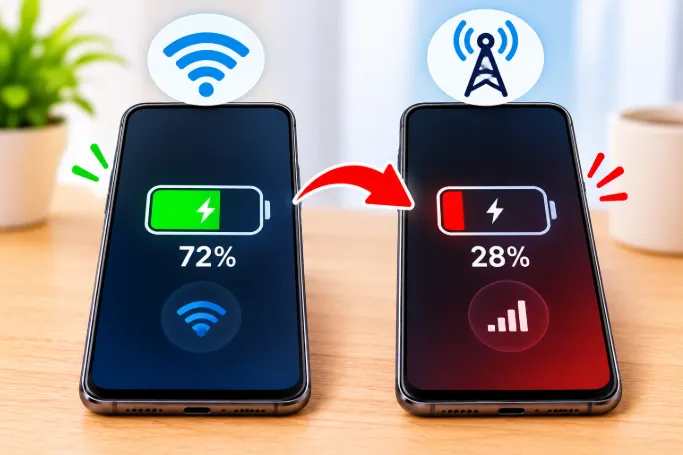
If your battery drains unusually fast on mobile data, there may be a related network cause. See why phone battery drains faster on mobile data.
11. A System Bug or Charge Mode Glitch
After an OS update, charging can bug out until a restart. The phone may stay in a wrong power state, or the charging service may freeze while the icon stays on.
Also check the USB mode when connected to a computer. The phone may be set to data transfer, which doesn't affect charging directly but can show up on weak ports.
What to do:
- Restart the phone.
- Update to the latest software, since charging bugs are often patched.
- Boot into Safe Mode (Android) and charge. If the percentage rises in Safe Mode, a third-party app is the cause.
- If the problem started right after an update, check for a newer patch before assuming hardware failure.
12. The Battery Percentage Reading Is Wrong
Your phone doesn't measure percentage directly. A fuel gauge chip estimates it by tracking voltage, current, and temperature. When the estimate drifts, the displayed number becomes unreliable.
Signs of a fuel gauge error:
- The percentage sits still, then jumps 5 to 10%
- The phone shuts down at 15 to 30%
- It says 100% but dies quickly
- Percentage drops in chunks instead of smoothly
Here the battery may be charging normally while the number lags behind. It often happens after a system update, after long periods of partial charging, with cold temperatures, or with an aging battery. Sudden jumps are the same underlying issue described in why phone battery drops suddenly from 50% to 20%.
What to do as a last resort:
- Let the phone drain until it turns off by itself.
- Charge uninterrupted to 100% while off, with the original charger.
- Leave it plugged in for another 30 minutes.
- Restart and use normally.
Results vary. This helps the gauge relearn minimum and maximum levels, but it doesn't repair the battery. Deep discharges are not good for battery health, so don't repeat it often.
13. Wireless Charging Is Not Aligned
With wireless charging, the phone may show the charging icon at even a slight magnetic field. If the coil alignment is off, energy transfer is very weak.
Other problems include thick cases, metal plates or magnetic rings, and low-wattage pads. A wireless pad plugged into a weak USB port is even weaker than a wired connection.
What to do: Remove the case, center the phone, and use a pad with proper wattage and a good power adapter.
14. A Third-Party or Replaced Battery
If the battery was replaced at a small repair shop, the new one may not communicate properly with the phone. This can cause inaccurate percentage readings, limited charging speed, or missing health information. Low-quality cells may also have different charging behavior than the original.
What to do: If the problem started after a repair, take the phone back to the shop. A reputable replacement should include correct calibration or at least a proper cell. On iPhone, a message about an unknown part in battery settings points to this cause.
15. The Battery Is Worn Out
Every battery loses capacity. A degraded battery heats faster, charges more slowly, and gives less accurate readings, because its internal resistance rises and it is harder to push energy in.
Signs of a worn battery:
- Battery health below 80% (check iPhone settings, or Samsung and Pixel diagnostics)
- The phone is over two to three years old and charged daily
- Sudden shutdowns
- Fast drain even when idle
What to do: If everything else tests fine, replacing the battery is the real fix. Software cannot repair a degraded cell.
How to Check Your Real Charging Current
Instead of guessing, measure it. Battery monitor apps such as AccuBattery (Android) show the current going into the battery in mA while plugged in. Some phones also show it in built-in diagnostics.
Here is a rough guide for most modern phones:
- Above about 1,000mA: healthy charging.
- Between 500 and 1,000mA: slow charging. Check the charger, cable, and standard match.
- Below 500mA: the charger, cable, port, or USB source is the weak link.
- Negative values: the phone is using more than it receives.
Readings differ by phone and app, and they fall naturally near 100%. Compare readings at low battery levels, with the screen off, for the best picture. Test with different cables and chargers to see the effect directly.
When It Could Be a Safety Issue
Most cases are harmless. Stop charging and get the phone checked if you notice:
- A bulging back panel or lifting screen
- Extreme heat, not just warmth
- A burning or chemical smell
- A phone that wobbles on a table
A swollen battery is dangerous. Don't keep charging it, don't puncture it, and take it to a repair center.
A Simple Troubleshooting Order
- Run the 20-minute off test.
- If it's stuck at 97 to 99%, wait. This is normal.
- Switch to a known good cable and charger that match your phone's standard.
- Charge from a wall socket, not a computer.
- Check battery protection and optimized charging settings.
- Let the phone warm up or cool down, and remove the case.
- Dry and clean the charging port.
- Restart, update, and test in Safe Mode.
- Check battery usage for heavy apps.
- Measure real charging current with a monitor app.
- Try the full drain and charge reset once, as a last resort.
- Check battery health and replace the battery if needed.
Frequently Asked Questions
Why does my phone say charging but the percentage goes down?
The phone is using more power than the charger delivers. This happens with weak chargers, computer USB ports, or heavy tasks like gaming, navigation, and video calls. Use a stronger charger and reduce usage while charging.
Why does my phone stay at 99% for so long?
Near full, the phone reduces charging current to protect the battery. This final stage can take 20 to 40 minutes or more. It is normal.
Why does my phone get stuck at 80% while charging?
It is almost always a battery protection feature, not a fault. Look for optimized charging, adaptive charging, or battery protection in battery settings.
Why does my phone charge slowly with a fast charger?
The charger, cable, and phone may not share the same fast charging standard, so the phone falls back to basic 5V speed. A cable without the right chip can cause the same result. Use the original charger and cable.
What does "charging on hold" or "charging paused" mean?
The phone paused charging on purpose because of heat, cold, moisture in the port, or a battery protection setting. Let it return to room temperature, dry the port, and reconnect.
Does cold weather stop phone charging?
It limits it. Charging is restricted below about 0°C (32°F) to protect the battery. Warm the phone to room temperature naturally before charging.
Can a bad cable show charging but not charge?
Yes. A damaged or low-quality cable can carry just enough power to trigger the icon but not enough to raise the percentage. Try another cable first.
Can a restart fix a charging percentage that won't move?
Often, yes, if the cause is a software glitch or a stuck app. Restart and, if the problem started after an update, install any newer patch.
Why does my battery percentage jump suddenly while charging?
The fuel gauge estimate is off and the phone is correcting itself. Cold, aging batteries, and updates are common causes. A worn battery may need replacement.
Does turning the phone off make it charge faster?
Usually, yes. With the phone off, nothing consumes power, so all incoming energy goes to the battery. It is also the best way to test whether the charger works.
Does a phone case affect charging?
A thick case traps heat, which makes the phone slow or pause charging. It can also block wireless charging.
Final Thoughts
A phone that shows charging but doesn't increase is usually telling you one of four things: the charger or cable is too weak for the job, something is limiting charging on purpose (protection, heat, cold, or moisture), the final stage is just slow, or the reading itself is inaccurate. The 20-minute test with the phone off shows which one in a single step. Work through the order above, and replace the battery only after the simpler causes are ruled out.