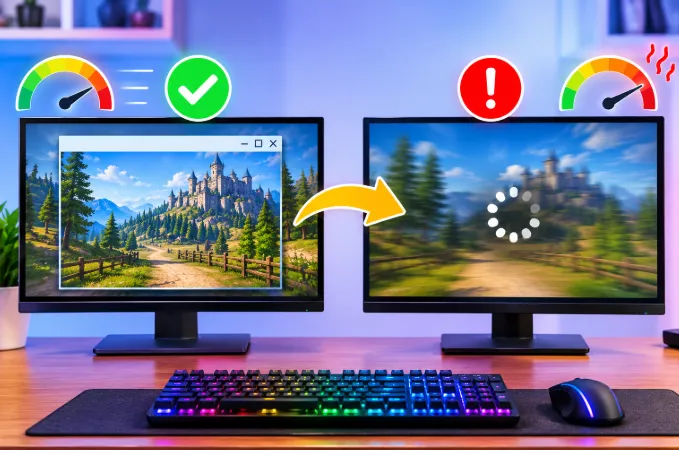

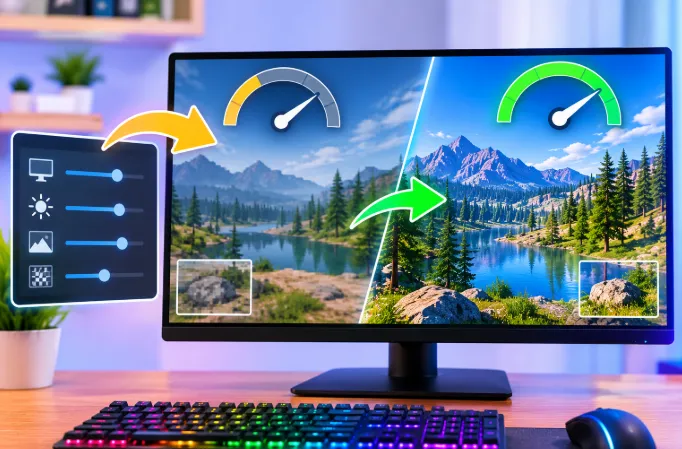
You drop every option to Low, expecting a big jump in frames per second. Instead the counter barely moves, or the game starts to hitch. Then you raise a few settings and it suddenly feels smoother.
This seems backwards, and most pages answer with one line: "you are CPU bottlenecked." That is only part of the story. Clock speeds, texture streaming, shader compilation, memory configuration, the wrong GPU being used and frame pacing can all change how a game behaves when you move a settings slider. This guide explains each cause in plain language and shows you how to test your own PC so you stop guessing.
The Short Answer
What is actually happening
Your FPS is decided by whichever part of your PC finishes its work last for each frame. Most of the time that is the CPU or the GPU. Lowering graphics settings mostly reduces GPU work. If the CPU is already the slow part, a lower setting changes nothing because the GPU was never the problem.
Raising settings can then appear to help in several ways:
- It gives the GPU enough work to hold steady clock speeds, so frame delivery becomes more even.
- It reduces the CPU's frame rate ceiling, which can stop the CPU from hitting its limit in bursts.
- It can change how textures are streamed and cached.
- It can trigger the game to use the correct graphics chip.
Average FPS versus smoothness
In a CPU-limited game, higher settings almost never raise your peak FPS. What they often improve is consistency: your 1% lows, your frame times and your frame pacing. That is why a game can feel faster even when the counter shows the same number. Smoothness is about how evenly frames arrive, not just how many arrive per second.
How a Frame Is Actually Made
The CPU prepares and the GPU draws
Every frame has two main stages. The CPU works out what is in the scene: where objects are, what the AI is doing, which physics apply and what needs to be drawn. It then sends the GPU a list of draw instructions. The GPU turns that list into pixels.
The two stages run as a pipeline. While the GPU draws the current frame, the CPU is already preparing the next one. Your FPS is limited by the slower stage, and the faster stage simply waits.
Which settings load which part
Graphics options fall into two broad groups.
- GPU-heavy settings: resolution, resolution scale, anti-aliasing, shadow resolution, ray tracing, ambient occlusion quality, reflections and post-processing effects.
- CPU-heavy settings: view distance, object and foliage density, crowd and NPC count, physics detail and the number of dynamic objects.
If you lower only GPU-heavy settings in a CPU-limited game, the GPU finishes sooner and then waits. The frame is not delivered any faster, so FPS stays flat. This is the core reason "turn everything to Low" often does nothing.
Why Lowering Settings Can Make Things Worse
The GPU drops its clock speed
Modern GPUs change clock speed and power draw constantly. When the load is light, the card moves to a lower power state to save energy and heat. If the load keeps changing, the GPU can bounce between states, and each ramp-up takes a moment.
On Low settings, especially with an uncapped frame rate, the GPU may only be 30 to 50 percent busy. It idles down, a heavy scene arrives and the clock has to climb back up. You feel this as a small hitch or uneven frame delivery. On higher settings the GPU stays busy and its clocks stay stable.
To test this, set "Power management mode" to "Prefer maximum performance" for that game in the NVIDIA Control Panel. On AMD, make sure the card is not in a power-saving profile. If the stutter disappears, clock behavior was the cause.
Lower settings push the CPU harder
This one is rarely explained. When you lower GPU settings, the GPU can produce frames faster, so the CPU is asked to prepare more frames every second. If the CPU was already close to its limit, it now hits it more often. Instead of a steady 70 FPS, you may get bursts of 130 FPS followed by sudden dips as the CPU struggles with a busy scene.
The average goes up slightly, but the experience gets worse because the gap between the best and worst frames is larger. A higher setting can slow the GPU just enough that the CPU is no longer pushed into those spikes, and the game feels calmer. A frame cap does the same job, which is covered below.
Low presets can change engine behavior
Some engines tune their rendering paths around the medium and high presets. On Low, certain features may be simplified in ways that still cost CPU time, such as shadows that are refreshed more often or culling that is less efficient. This depends heavily on the game, so treat it as a possibility to test rather than a rule. If one preset step causes an unexpected FPS drop, try changing individual options instead of the whole preset to find the culprit.
Textures, VRAM and Stutter
How texture streaming works
Many games stream textures in and out of memory as you move through the world. With a large VRAM budget, the game can keep more of what it needs loaded. With very small texture pools, some engines have to reload assets more often, and that reloading can show up as micro-stutter that looks like low FPS but is really a loading problem.
This varies by engine, so test it. If your game stutters when turning quickly or entering new areas, try raising textures one step, as long as they fit in your VRAM.
When textures exceed your VRAM
The opposite problem is also common. If the texture setting asks for more memory than your GPU has, the game spills data into system RAM over the PCIe bus. That path is much slower than VRAM and causes big frame-time spikes. The practical rule is to set textures as high as your VRAM allows, and no higher. Many games show a VRAM meter in the graphics menu. Stay under it.
System RAM matters here too. If your PC is short on memory, spillover makes everything worse, which is one reason adding more RAM can improve performance even without a CPU upgrade.
Disk speed and background activity
Streamed textures come from your drive. A slow or busy disk produces stutter that no graphics option can fix. If Windows is already hammering the drive in the background, check why Windows can show 100% disk usage even when idle before blaming the game.
Shader Compilation Stutter
What shaders are
Shaders are small programs that tell the GPU how to draw surfaces, lighting and effects. Before the GPU can run a shader, it must be compiled for your specific hardware and driver. If that happens while you are playing, the game freezes for a split second.
Why DirectX 12 and Vulkan games show it more
Newer graphics APIs give developers more control, and in return many games compile shaders on the fly the first time an effect appears. That is why you may see hitches during the first few minutes of a session, or the first time you enter a new area, and then smooth play afterward.
Why changing settings seems to fix it
When you change a graphics option, the game often rebuilds its shader cache. After the rebuild, the game runs smoothly, and it looks like the new setting fixed performance. In reality the shader cache simply got filled. To avoid being fooled, play for a few minutes after any change before judging the result, and let the game finish any "compiling shaders" step in its menu.
If stutter returns after a driver update, the cache was probably cleared. That is a common reason a game feels worse right after a driver change, and it often settles after a short play session. If it does not, read why a game can run slower after a graphics driver update.
Memory Configuration and Integrated Graphics
Dual-channel versus single-channel RAM
In CPU-bound games, memory speed and configuration have a real effect. A PC with a single stick of RAM runs in single-channel mode and has roughly half the memory bandwidth of two matched sticks in dual-channel mode. Games that are limited by the CPU depend heavily on how fast data moves in and out of memory, so single-channel systems often show lower 1% lows and worse frame pacing.
If your CPU is the bottleneck and you have one stick, adding a matching second stick can help more than any graphics setting. Check your motherboard manual to confirm which slots to use.
Integrated graphics share system RAM
If you use integrated graphics, there is no dedicated VRAM. The GPU borrows part of your system RAM, and it competes with the CPU for the same bandwidth. That changes how settings behave:
- Texture quality uses your regular RAM, so low available memory hurts.
- Single-channel RAM can cut integrated graphics performance sharply.
- Resolution and shadows still matter a lot, because the iGPU is weak and almost always the bottleneck.
For integrated graphics, lowering resolution scale usually helps more than lowering anything else, and dual-channel RAM is one of the best upgrades you can make.
Amount of RAM
Low total RAM leads to paging, where Windows moves data to disk. This appears as long freezes rather than low FPS. If a game stutters when you raise settings and your memory usage is near the maximum, the limit is RAM, not the GPU.
Laptops: The Wrong GPU Problem
Why it happens
Many laptops have both an integrated GPU and a dedicated GPU. Windows decides which one runs each game. If a game quietly runs on the integrated chip, lowering settings helps a little, but you are still limited by weak hardware. Some games only switch to the dedicated GPU in certain situations, such as launching through a specific launcher or running in a certain display mode.
How to check and fix it
Do not rely on luck. Check it properly:
- Open Windows Settings, then System, then Display, then Graphics.
- Find the game's .exe file and set it to High performance.
- Open Task Manager and watch which GPU shows activity while the game runs.
On laptops, also make sure you are plugged in and using a performance power plan. Battery mode can limit both the CPU and GPU. If your battery behaves oddly while gaming, see why a laptop battery can drop suddenly from 40 to 10.
Windows and Hardware Features That Affect Frame Pacing
Resizable BAR
Resizable BAR lets the CPU access the GPU's full video memory at once instead of in small chunks. In some games it improves performance by a few percent, and in others it makes no difference. In a few titles it can slightly hurt. It needs support from your motherboard, CPU and GPU, plus a BIOS setting. If a game behaves strangely, test with it on and off instead of assuming it always helps.
Hardware-accelerated GPU scheduling
This Windows option lets the GPU manage more of its own memory scheduling. For some systems it reduces CPU overhead and improves frame pacing, and for others it adds stutter or conflicts with frame generation or capture software. You can find it under Windows graphics settings. Toggle it, restart and compare frame times in the same scene. The result differs from PC to PC, so only your own test counts.
Game mode and background load
Overlays, recording tools, browsers and cloud sync apps use CPU time. In a CPU-bound game this directly lowers FPS and makes frame times uneven. Close what you do not need before testing.
Upscalers and Frame Generation
Upscaling helps only when the GPU is the limit
Technologies like DLSS, FSR and XeSS render at a lower internal resolution and scale the image up. This reduces GPU load, which is excellent when the GPU is the bottleneck. If you are CPU-limited, the gain is small, and the upscaling step itself can add a little frame time.
Frame generation can inflate the number
Frame generation inserts extra frames between real ones. The counter shows a much higher FPS, but the game's responsiveness still follows the underlying real frame rate. A high number does not always mean a smoother or more responsive game, especially if the base frame rate is low.
How to test
Switch the upscaler off, then on, and compare GPU usage and 1% lows, not just the average. If GPU usage was already under 90 percent, the upscaler is not your fix.
Frame Caps, VRR and V-Sync
An uncapped game can feel worse
With no cap, FPS swings. The game might jump between 140 and 70, which feels worse than a locked 90. Capping the frame rate keeps GPU load steadier, reduces heat and prevents the CPU from being pushed into those spikes described earlier. Set the cap at or just under what your PC can hold consistently.
Why a low cap can feel wrong with variable refresh rate
G-Sync and FreeSync match your monitor's refresh rate to your FPS, but only within a range. If your cap or your FPS falls below the monitor's minimum range, the display stops syncing properly and you see tearing or judder. Some monitors also show flicker or uneven brightness near the bottom of the range.
A good rule is to cap a few frames below your monitor's maximum refresh rate when using variable refresh rate, and avoid caps that put you under the supported range. If your game feels worse at a low cap, this is a common reason.
V-Sync can hide the real numbers
Without variable refresh rate, V-Sync can lock your FPS to a fraction of your refresh rate when the PC cannot keep up. A drop from 60 to 30 FPS can look sudden and confusing. If you see sharp FPS cliffs, test with V-Sync off briefly to see your true performance.
Read Frame Times, Not Just Average FPS
What 1% lows tell you
Average FPS hides stutter. The 1% low figure shows how your worst frames behave. A game averaging 100 FPS with 1% lows at 40 will feel rougher than one averaging 80 FPS with 1% lows at 70. When higher settings "improve" a game, the average often stays the same and the lows get better.
Why a frame time graph is more useful
A frame time graph shows how long each frame took to draw, usually in milliseconds. A smooth game gives a flat line. A stuttering game shows spikes. Even if two settings give the same FPS, the one with the flatter line feels better. Tools like MSI Afterburner with RTSS, or the overlay built into your GPU software, can show this graph while you play.
What to look for
- Regular spikes at the same interval often point to background tasks or caching.
- Spikes when turning or entering new areas point to texture or asset streaming.
- Spikes only in the first minutes point to shader compilation.
- A saw-tooth pattern can point to a frame cap or V-Sync issue.
How to Tell If You Are CPU-Bound or GPU-Bound
The resolution test
- Run the game with an FPS counter.
- Stand in the same demanding scene.
- Note your FPS, then lower the resolution one or two steps and check again.
If FPS jumps, you are GPU-bound and lowering GPU settings will help. If FPS stays almost the same, you are CPU-bound. In that case, lowering GPU-heavy settings is pointless, and raising them is often free.
Check GPU usage
If GPU usage stays at 95 to 100 percent, the GPU is the limit. If it sits around 60 percent or lower while FPS is low, something else is holding it back, usually the CPU, a frame cap, V-Sync or memory limits.
Look at individual CPU cores
Total CPU usage can look low, say 30 percent, while one core is maxed out. Many games depend heavily on a single main thread. Check per-core usage. One core pinned near 100 percent means a CPU bottleneck even when the overall number looks fine.
Settings That Help When You Are CPU-Bound
Lower these first
- View distance and object density
- Crowd and NPC counts
- Physics or simulation quality
- Background apps, browser tabs and overlays
Then raise GPU-heavy settings
Once the CPU load is under control, the GPU usually has spare capacity. You can raise shadows, textures and anti-aliasing for better visuals at the same FPS. This is the real reason higher settings can come "for free" in some games.
Other Problems That Mimic This
Display mode
Fullscreen, borderless and windowed modes change how frames reach your screen. If the difference is large, read about games that lag in fullscreen but run smoothly in windowed mode.
Repeating freezes
If the game stops for a second or two every few minutes, that is a different issue from low FPS. Causes of games that freeze for a few seconds repeatedly usually involve drivers, storage or overheating.
Thermal throttling
A hot CPU or GPU lowers its clocks automatically. If FPS starts high and slowly decays over 10 to 15 minutes, heat is the likely cause. Higher settings may seem to help simply because the GPU runs at a lower, cooler, more stable clock.
Power plan
On laptops and some desktops, a power-saver plan can cap performance. Choose a balanced or performance plan and test again.
A Practical Settings Strategy
Step by step
- Run the game at its default preset and record FPS, 1% lows and GPU usage.
- Do the resolution test to find your bottleneck.
- If GPU-bound, lower resolution scale, shadows and ambient occlusion first.
- If CPU-bound, lower view distance and object density, then raise GPU-heavy settings.
- Set textures to the highest level your VRAM can hold.
- Cap FPS near your stable average and match it to your monitor's range.
- Play a few minutes to fill the shader cache, then test again in the same scene.
Test one change at a time
Changing five options at once tells you nothing. Change one, test in the same scene, note the result, then move on. It takes longer but gives results you can trust.
Frequently Asked Questions
Can higher graphics settings really increase FPS?
Rarely in raw average FPS. They can improve 1% lows and frame pacing, and they can fix stutter linked to GPU idling, texture streaming or CPU spikes. Peak FPS is usually set by your CPU in those cases.
Why does my game stutter on low settings?
Common causes include the GPU downclocking under light load, the CPU being pushed into bursts by higher frame rates, shader compilation, or a CPU bottleneck that low settings do not touch. Try a medium preset with maximum-performance power mode and a frame cap.
Is my CPU or GPU the bottleneck?
Lower the resolution. If FPS jumps, the GPU is the limit. If FPS barely changes, the CPU is the limit. Also check whether a single CPU core is near 100 percent.
Do ultra textures reduce FPS?
Only if they exceed your VRAM. When they fit, texture quality has a small effect on FPS. When they do not fit, you get heavy stutter and sharp drops.
Why is GPU usage low while FPS is low?
Usually a CPU bottleneck, a frame cap, V-Sync or a game that does not use the GPU well. Check per-core CPU usage and remove caps temporarily to see the difference.
Should I always play on the lowest settings for max FPS?
No. If you are CPU-limited, Low gives no gain and costs image quality. Match your settings to your bottleneck.
Does DLSS or FSR always raise FPS?
No. It helps when you are GPU-bound. When you are CPU-bound the gain is small, and frame generation can inflate the number without improving responsiveness.
Why does my laptop run better on higher settings?
The game may be using the dedicated GPU instead of the integrated one, or the GPU holds higher clocks under heavier load. Set the game to High performance in Windows graphics settings and confirm in Task Manager.
Does single-channel RAM affect FPS?
Yes, especially in CPU-bound games and on integrated graphics. Dual-channel memory gives more bandwidth and often improves 1% lows noticeably.
Why does my game stutter for the first few minutes only?
That is usually shader compilation. The game builds its shader cache as you play, and the hitching fades once it is filled. A driver update or settings change can reset the cache.
Does a low FPS cap cause stutter with G-Sync or FreeSync?
It can. If your FPS falls below the monitor's variable refresh range, syncing breaks and you may see judder or tearing. Cap a few frames below the maximum refresh rate and stay within the supported range.
Do Resizable BAR and GPU scheduling always help?
No. The effect depends on the game and your hardware. Test each with it on and off and compare frame times.
Final Thoughts
Graphics settings are not a simple dial where lower always means faster. They move work between your CPU, GPU, VRAM, RAM and storage. Once you know which part is the limit, you can lower only the options that matter and raise the rest at little or no cost. When higher settings seem to fix a game, the reason is usually steadier GPU clocks, a calmer CPU, a filled shader cache, better memory use or the right graphics chip being used, not because the game suddenly got lighter. Test, compare frame times and let your own system show you the answer.