
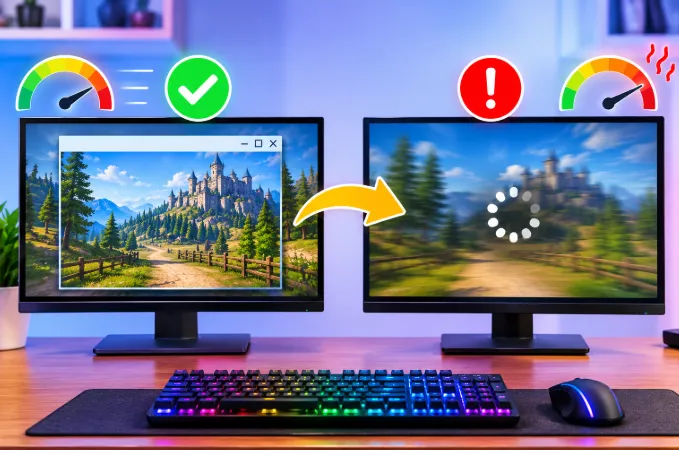
You launch a game in a window and everything feels fine. You switch to fullscreen, expecting better performance, and suddenly you get stutter, input delay, or a frame rate that feels worse. It seems backwards, but it is a common problem, and it rarely means your hardware is failing.
The cause is usually a mismatch in how Windows, your GPU driver, your monitor, and the game each handle the display. This guide explains why it happens, how to tell which cause applies to you, and how to fix it without endless trial and error.
Why Fullscreen Can Feel Worse Than Windowed Mode
To understand the lag, you need to know that "fullscreen" is not one thing. Most players do not realize a game can be in three different display states.
The three display modes
- Windowed mode: The game draws inside a normal window. The Desktop Window Manager (DWM) handles the final image, so everything stays in sync with your desktop.
- Exclusive fullscreen: The game takes direct control of the display. It can change your resolution and refresh rate and bypass the desktop compositor.
- Borderless windowed (also called windowed fullscreen): The game fills the screen but is technically a window, so DWM still manages it.
Modern Windows blurs these lines. A feature called Fullscreen Optimizations quietly converts many exclusive fullscreen games into a borderless-style mode behind the scenes. So when you pick "Fullscreen" in a game menu, you may not be getting true exclusive fullscreen, and that mismatch causes many of the problems below.
Why windowed mode hides problems
Windowed mode is smoother for a reason that has nothing to do with raw speed: DWM syncs every frame to the desktop refresh cycle. That prevents tearing and smooths out timing hiccups. In fullscreen, the game talks to the display more directly, so any weakness, such as uneven frame pacing, a wrong refresh rate, or a V-Sync conflict, shows up immediately.
Fullscreen is not necessarily slower. It is more honest about problems that windowed mode covers up.
The Most Overlooked Cause: You Are Not Comparing the Same Resolution
Before changing any setting, check this. Many games open in a window at a smaller default size such as 1280×720 or 1600×900. Fullscreen usually runs at your monitor's native resolution, such as 1920×1080, 2560×1440, or 3840×2160.
Pixel counts add up quickly:
| Resolution | Pixels rendered | Compared to 720p |
|---|---|---|
| 1280×720 | about 0.92 million | 1× |
| 1920×1080 | about 2.07 million | 2.25× |
| 2560×1440 | about 3.69 million | 4× |
| 3840×2160 | about 8.29 million | 9× |
If your windowed test ran at 720p and your fullscreen test ran at 4K, the GPU is doing about nine times more work. The game is not lagging because of fullscreen. It is lagging because of resolution.
How to test fairly: Set the same resolution in both modes, then compare. If the lag disappears, you have a GPU load issue, not a display mode issue. If you are unsure how much your hardware can handle, our guide on whether higher graphics settings improve FPS explains how resolution and quality settings affect frame rate.
Refresh Rate Mismatch: The Silent Fullscreen Killer
This is one of the most common causes, and most guides skip it.
Your desktop might run at 144Hz or 165Hz. When a game enters exclusive fullscreen, it can switch the monitor to a different mode, often 60Hz, if the game does not expose your higher refresh rate or defaults to the lowest available option.
The result is a game that feels choppy even though the FPS counter looks fine. You may be rendering 100+ frames, but the monitor only displays 60 of them per second.
How to check
- Right-click the desktop and open Display settings.
- Open Advanced display and note your refresh rate.
- Launch the game in fullscreen and look for a refresh rate option in the video settings.
- If the game has no such option, check your GPU control panel or monitor on-screen display for the active mode while the game runs.
How to fix it
- Set the refresh rate manually in the game's video menu if it offers one.
- In the NVIDIA Control Panel, open Manage 3D Settings and set Preferred refresh rate to Highest available for that game.
- Use borderless windowed mode, which keeps your desktop refresh rate and avoids the switch entirely.
V-Sync, Frame Caps, and Why Smoothness Is Not Just FPS
A high frame rate does not guarantee a smooth experience. What matters is frame pacing, meaning how evenly frames arrive. Windowed mode gets automatic pacing from DWM. In fullscreen, pacing depends on the game and your driver settings.
V-Sync problems in fullscreen
With V-Sync on in exclusive fullscreen, the game waits for the monitor's refresh. If your GPU cannot keep up with the refresh rate, V-Sync can drop you from 60 FPS to 30 FPS in steps, which feels like sudden lag. In windowed mode, DWM's compositor softens this behavior.
What to try
- Turn off in-game V-Sync and use a frame limiter instead.
- Cap your FPS slightly below your refresh rate. On a 144Hz monitor, cap at 141 or 142 to avoid V-Sync's input delay.
- Use G-Sync or FreeSync if your monitor supports it. These adjust the refresh rate to match your frame rate and remove most of the stutter.
G-Sync and FreeSync behave differently in windowed mode
By default, many setups only enable variable refresh rate in true fullscreen. If you use borderless windowed mode, VRR may not engage. In the NVIDIA Control Panel, under Set up G-SYNC, choose Enable for windowed and full screen mode so it works in both.
Fullscreen Optimizations: Helpful or Harmful?
Fullscreen Optimizations was meant to give you the best of both worlds: low latency and smooth alt-tabbing. On many systems it works well. On others it causes stutter, inconsistent frame times, or input lag in specific games, especially older titles.
How to test it
- Right-click the game's .exe file and open Properties.
- Go to the Compatibility tab.
- Tick Disable fullscreen optimizations.
- Click Apply, launch the game, and compare.
Do this one game at a time. If the game improves, keep the change. If it gets worse, undo it. This setting helps some games and hurts others, so it is not a universal fix.
The Windows setting that confuses people
In Settings > System > Display > Graphics > Change default graphics settings, there is an option called Optimizations for windowed games. It improves how DirectX 10 and 11 games perform in windowed and borderless modes. If you play in borderless windowed and see stutter, toggling this option is worth testing.
DPI Scaling Override: A Fix for Blurry, Slow Fullscreen
On high-DPI screens with Windows scaling set to 125% or 150%, some games handle fullscreen badly. The result can be a blurry image, a wrong resolution, or stutter.
- Right-click the game .exe and open Properties > Compatibility.
- Click Change high DPI settings.
- Tick Override high DPI scaling behavior and set it to Application.
- Apply the change and relaunch the game.
If the picture looks sharper and the stutter stops, the game was fighting Windows scaling.
Overlays and Background Apps That Hook Into Fullscreen
Overlays attach themselves to your game's rendering pipeline. In windowed mode they mostly sit on top without much interference, but in fullscreen they can conflict with the game or with each other.
Common culprits include:
- Discord overlay
- Steam overlay
- NVIDIA App or GeForce Experience overlay
- AMD Software overlay
- Xbox Game Bar
- MSI Afterburner and RivaTuner, which have their own frame limiter settings
- Screen recording and streaming software
Disable all overlays and test. If the lag disappears, re-enable them one by one to find the culprit. Two apps trying to limit frame rates at once, such as an in-game cap plus RivaTuner, is a classic cause of uneven frame timing.
Second Monitor Stutter: The Cause Most Guides Never Mention
If your game only lags in fullscreen when a second monitor is connected, this is likely your cause. Windows still composites the second display while your game runs, and both monitors compete for the same GPU and desktop pipeline.
Mixed refresh rates make it worse
A common setup is a 144Hz gaming monitor next to a 60Hz secondary screen. In borderless windowed mode, DWM has to manage both at once, and mismatched refresh rates can cause uneven frame timing even when your FPS is high. A video playing on the second monitor adds GPU decode work on top of the game.
How to test and fix it
- Unplug or disable the second monitor and test again. If the lag disappears, you have found the cause.
- Close browser tabs and video players on the second screen while gaming.
- Turn off hardware acceleration in your browser if it runs alongside the game.
- Try exclusive fullscreen instead of borderless, since it isolates the game from the other display's timing.
- If possible, use two monitors with the same refresh rate.
HDR and Auto HDR: When Color Settings Cause Lag
HDR is a hidden cause of fullscreen stutter. When a game enters fullscreen with HDR on, the display has to change signal modes, which can cause flicker, a delayed black screen, or lower performance on weaker GPUs.
What to check
- In Settings > System > Display > HDR, see whether HDR is on while the game is not an HDR title.
- On Windows 11, test turning Auto HDR off for games. It applies HDR processing to non-HDR games and adds GPU work.
- Washed-out colors in fullscreen combined with lag are a strong sign of an HDR mismatch.
Hybrid Graphics on Laptops: When the Wrong GPU Runs the Game
On laptops with both an integrated GPU and a dedicated GPU, which one runs the game can change with display mode. In some setups the game runs on the dedicated GPU in fullscreen but falls back to the integrated one in windowed mode, or the reverse.
How to check which GPU is being used
- Open Task Manager and go to the Performance tab.
- Watch GPU 0 and GPU 1 while the game runs.
- If the busy GPU is the integrated one, the game is using the wrong processor.
How to fix it
Go to Settings > System > Display > Graphics, add your game, click Options, and choose High performance. Also set it in the NVIDIA Control Panel or AMD Software for that game.
Laptop Power Mode: Plugged In vs. On Battery
Many laptops cut GPU and CPU power sharply on battery, even in a performance mode. This often appears only in fullscreen, because that is when the GPU works hardest.
- Always game with the charger connected.
- Set Power mode to Best performance in Windows settings.
- Check that the manufacturer's performance profile (Turbo, Performance, or similar) is active.
- A weak or underpowered charger can force the laptop to throttle even when plugged in.
Laptops also run hotter under fullscreen load. If temperatures climb above what is normal for your model, thermal throttling can cause stutter that windowed mode, with its lighter load, never triggers.
Graphics Driver Issues That Only Appear in Fullscreen
Driver bugs often show up only in exclusive fullscreen because that is where the driver takes more direct control of the display. If the lag began after a recent update, the driver is the first suspect. Our article on why a game runs slower after a graphics driver update walks through how to roll back and clean-install a driver properly.
Settings worth testing
- Hardware-accelerated GPU scheduling (HAGS): Found under Settings > System > Display > Graphics > Change default graphics settings. It helps some systems and causes stutter on others, so test it both on and off.
- Low Latency Mode (NVIDIA) and Anti-Lag (AMD): These can reduce delay but sometimes cause stutter in games that already manage their own render queue.
- Multiplane Overlay (MPO): On some driver versions it causes flicker, black screens, and stutter when switching display modes.
Alt-Tab Stutter and Black Screen Delay
If your game lags specifically after you alt-tab out and back in, exclusive fullscreen is the likely cause. When you leave the game, Windows restores your desktop resolution and refresh rate. When you return, it switches them again. This can freeze the game for several seconds. If you also see repeated short freezes during normal play, read our guide on why a game freezes for a few seconds repeatedly.
Why it takes so long on some monitors
Monitors using Display Stream Compression (DSC) over DisplayPort, common on high-resolution, high-refresh displays, take noticeably longer to renegotiate the signal during mode changes. Borderless windowed mode avoids the mode switch entirely and makes alt-tabbing nearly instant.
Memory and Storage: When Fullscreen Exposes a Resource Limit
Higher resolution uses more VRAM and more system RAM for textures and frame buffers. If your GPU's video memory is nearly full in windowed mode, switching to a bigger display area can push it over the edge. The game then spills data into system RAM, which is much slower, and you see sudden stutter. If system RAM is also tight, the problem gets worse, which is why more RAM can improve performance without a CPU upgrade in some situations.
Watch VRAM usage in an overlay or in Task Manager. If it sits near the limit in fullscreen, lower texture quality or resolution.
Check 1% Lows, Not Just Average FPS
If the average FPS looks the same in both modes but fullscreen feels worse, the problem is probably frame-time spikes. Use a tool that shows 1% lows or a frame-time graph. A big gap between average FPS and 1% lows means frames are delivered unevenly, which points to pacing, V-Sync, or a CPU bottleneck rather than a lack of GPU power.
Also check CPU usage per core while playing. If one core sits near 100% while the GPU stays low, your CPU is limiting the game, and changing display mode will not fix that.
Background load can also be the cause
If your whole system lags while gaming, check Task Manager first. If it shows 100% disk usage even when idle, background reads and writes can cause game stutter in any display mode.
Quick Diagnosis Table
| What you notice | Most likely cause | First thing to try |
|---|---|---|
| FPS counter looks fine but feels choppy | Refresh rate dropped in fullscreen | Check refresh rate, or use borderless |
| FPS drops hard at fullscreen switch | Resolution higher than windowed test | Match resolution in both modes |
| Frame rate locks to 30 or 60 suddenly | V-Sync stepping | Disable V-Sync, use a frame cap |
| Stutter began after a driver update | Driver regression | Roll back or clean install |
| Lag after alt-tab | Mode switching | Use borderless windowed |
| Input feels delayed | Overlay or Low Latency conflict | Disable overlays, test Low Latency |
| Lag only with two monitors | Second display compositing | Disconnect it to test |
| Washed colors plus lag | HDR or Auto HDR mismatch | Turn HDR off for non-HDR games |
| Lag on laptop only | Wrong GPU or battery power limit | Force high-performance GPU, plug in |
| Random freezes in fullscreen only | Fullscreen Optimizations conflict | Toggle the compatibility setting |
| Blurry image plus stutter | DPI scaling conflict | Override high DPI behavior |
Step-by-Step Fix Order
Work through these in order, because each step rules out a cause:
- Match resolution in windowed and fullscreen so you compare equal workloads.
- Check the refresh rate the game uses in fullscreen.
- Turn off overlays and extra frame limiters.
- Set one frame cap and adjust V-Sync.
- Test Fullscreen Optimizations on and off.
- Disconnect the second monitor and turn off HDR to test.
- Try borderless windowed mode as a practical workaround.
- Confirm the correct GPU is running the game, and plug in the charger on laptops.
- Update or roll back the graphics driver.
- Check VRAM, RAM, 1% lows, and temperatures for resource limits.
Which Mode Should You Use?
There is no universal winner. The right choice depends on your setup.
- Choose borderless windowed if you multitask, alt-tab often, or have a high-refresh monitor with DSC. It is smoother for most modern setups.
- Choose exclusive fullscreen if you want the lowest input latency, use G-Sync or FreeSync, and do not mind slower alt-tabbing.
- Choose windowed for troubleshooting, or for older games that do not handle fullscreen well.
If borderless windowed runs smoothly for you, that is a legitimate solution, not a compromise.
Frequently Asked Questions
Is borderless windowed better than fullscreen?
It depends on your goals. Borderless windowed makes alt-tabbing fast and avoids refresh rate and resolution switching. Exclusive fullscreen can offer slightly lower input latency on some systems. On modern Windows the difference is small, and many players prefer borderless for stability.
Does fullscreen give more FPS than windowed mode?
Not always. Older versions of Windows gave exclusive fullscreen a clear advantage. Today, Fullscreen Optimizations and flip-model presentation mean the gap is often a few percent or none. A large difference usually comes from resolution, refresh rate, or driver behavior.
Why does my game stutter only in fullscreen?
Stutter that only happens in fullscreen usually comes from a refresh rate mismatch, V-Sync stepping, overlay conflicts, or a driver issue. Test with matched resolution first, then work through the fix order above.
Does windowed mode use less GPU?
Windowed mode often uses less GPU only because the window is smaller than your native resolution. At the same resolution, GPU usage is very similar between modes.
Should I disable Fullscreen Optimizations?
Only if it helps in your specific game. It improves some titles and worsens others, so test each game with it on and off, then keep the better result.
Why does my game go black or freeze when I alt-tab in fullscreen?
Exclusive fullscreen forces Windows to change the display mode when you leave and re-enter the game. High-refresh monitors, especially those using DSC, can take several seconds to renegotiate. Borderless windowed mode avoids this.
Why is my FPS high but the game still feels laggy in fullscreen?
High FPS does not equal smooth gameplay. Uneven frame pacing, a refresh rate that dropped to 60Hz, or V-Sync delay can all make a high frame count feel choppy. Check your actual refresh rate and use a single frame cap.
Can an overlay cause lag only in fullscreen?
Yes. Overlays like Discord, Steam, GeForce, and Xbox Game Bar hook into the rendering pipeline. In fullscreen those hooks can conflict with the game or with each other, so disable them to test.
Does G-Sync work in windowed mode?
Only if you enable it. In the NVIDIA Control Panel, choose the option that enables G-Sync for both windowed and full screen mode. Otherwise it may only activate in exclusive fullscreen.
Why does my game lag in fullscreen only with two monitors?
Windows keeps compositing the second monitor while your game runs. Mixed refresh rates or video on the second screen can disturb frame timing. Disconnect it to test, or try exclusive fullscreen.
Does HDR cause lag in fullscreen games?
It can. Switching to an HDR signal adds mode changes and GPU work. If the game is not an HDR title, turn HDR or Auto HDR off and test.
Why does my laptop lag more in fullscreen on battery?
Laptops limit CPU and GPU power on battery, and fullscreen puts the most load on the GPU. Plug in the charger and set the power mode to Best performance.
Why is my FPS the same but fullscreen feels slower?
Average FPS can match while 1% lows are worse, which means uneven frame pacing. Check frame times and look for V-Sync, overlay, or refresh rate issues.
Final Thoughts
When a game runs smoothly in windowed mode but lags in fullscreen, the display mode is rarely the real problem. It exposes a mismatch somewhere else: resolution, refresh rate, V-Sync, an overlay, a second monitor, HDR, the wrong GPU, or a driver bug. Match your test conditions first, work through the fixes in order, and if all else fails, borderless windowed mode gives you a smooth experience with very little downside.