
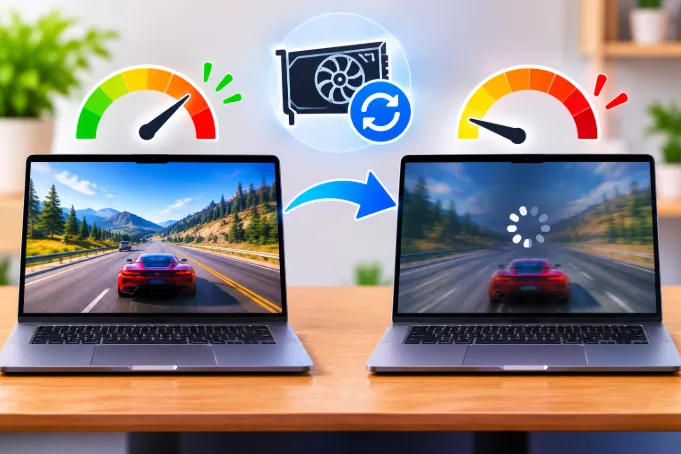
You installed the latest graphics driver expecting a free performance boost. Instead, your favorite game stutters, the frame rate dropped, and everything feels heavier than yesterday. It is frustrating, and it is also very common.
The good news is that a slowdown after a driver update almost always has a specific, fixable reason. Sometimes the game is not actually slower at all, and the driver is just doing temporary work in the background. Other times the installer quietly changed a setting that matters. And occasionally, the new driver genuinely has a bug.
This guide explains what is really happening, how to tell the difference, and what to do about it in the right order.
Quick Answer: Why Games Slow Down After a Driver Update
A game usually runs slower after a driver update for one of five reasons:
- The driver erased the shader cache, so the game is rebuilding it while you play.
- The update reset your graphics settings (power mode, V-Sync, frame limits, or per-game profiles).
- Leftover files from the old driver conflict with the new one.
- Windows or your laptop maker replaced the driver with a different version without telling you.
- The new version has a genuine regression for your specific game or GPU.
Most people fix the problem by waiting through a short shader rebuild, resetting settings, or doing a clean reinstall. Rolling back is the last resort, not the first move.
Why a New Driver Can Lower FPS
A graphics driver is not just a bridge between the game and the card. It translates the game’s instructions into commands your specific GPU understands, and it makes thousands of small decisions about scheduling, memory and power. Change the driver, and you change all of those decisions at once.
The Driver Is Optimized for New Games, Not Necessarily Yours
Driver teams focus their testing on newly released games and popular benchmarks. An update that adds a big improvement for a brand new title can slightly change how older or less popular games behave. This does not mean the driver is bad. It means your game was not the priority for that release.
This is why you will often see one person praise a driver while another complains about it. Performance depends on the game, the GPU model, the CPU paired with it, and the Windows build.
Game-Specific Profiles Can Be Replaced
Both NVIDIA and AMD store internal profiles that tell the driver how to treat certain games. A new driver ships with updated profiles. If the old profile for your game worked well with your hardware, the new one may not be as friendly, especially on older graphics cards that are no longer a testing priority.
Newer Features Are Sometimes Turned On by Default
Drivers increasingly ship with extra features: image sharpening, low-latency modes, frame generation options, video enhancement, and overlay tools. If any of these switch on after an update, they use GPU time. A feature that costs only a few percent of performance can still be noticeable on a mid-range card.
The Shader Cache: The Most Overlooked Reason
This is the cause most articles skip, and it explains more cases than any bug does.
What the Shader Cache Actually Does
When a game draws effects like shadows, water, or reflections, it uses small programs called shaders. Your GPU cannot run them until the driver compiles them into a form your exact card understands. Compiling takes time, so the driver saves the finished result in a cache. The next time the game needs that effect, it loads the saved version instantly.
Why a Driver Update Wipes It
A compiled shader is only valid for the driver version that created it. When the driver changes, the old cache is no longer trusted, so it is discarded. Your game now has to compile everything again, live, while you are playing.
What This Looks Like in Practice
- Small freezes or hitches when entering a new area or seeing a new effect for the first time.
- Lower average FPS for the first few play sessions.
- Stutter that slowly improves the longer you play.
- A noticeably longer first loading screen.
If your game feels choppy right after updating but gets better after a few hours, the cache is the reason. Nothing is broken. Give it two or three sessions of normal play before judging the driver. If random pauses continue well beyond that, see our guide on why a game freezes for a few seconds repeatedly, because the cause may be something other than the driver.
Check Your Shader Cache Limit
A small shader cache limit can make the problem worse, because the driver keeps throwing away old compiled shaders to make room. In the NVIDIA App, open Graphics > Global Settings and find Shader Cache Size. In the older NVIDIA Control Panel, it sits under Manage 3D settings. NVIDIA’s own support page currently lists Driver Default as 16 GB, but that number can change between driver versions, so treat it as a guide rather than a fixed rule. The practical advice is simple: leave it on Driver Default unless you know it was lowered. A clean install or a settings reset can quietly put this option back to a value you did not choose.
How to Tell If It Is Really Slower or Just Feels Slower
Before changing anything, confirm there is a real drop. Human perception is unreliable here, especially when the game has hitches that make smooth frames feel worse than they are.
Measure Before and After Fairly
- Pick a repeatable spot in the game, such as a menu-free corner of a map or the built-in benchmark if it has one.
- Record your average FPS and the 1% low FPS with an overlay tool.
- Run it three times and compare the average of the three runs, not a single pass.
- Do it only after the shader cache has had time to rebuild.
Why 1% Lows Matter More Than Average FPS
Average FPS can look nearly identical while the game feels far worse. The 1% low figure shows how bad the worst moments are. After a driver update, a healthy average with a bad 1% low points to shader compilation or a background process, not to the driver being slower overall.
Rule Out Unrelated Slowdowns
Coincidence is common. A Windows update, a game patch, a hot summer day, or a full drive can all arrive in the same week as your driver. Check temperatures and storage before blaming the driver. If your PC is also sluggish outside games, read about why Windows shows 100% disk usage when idle, since constant disk activity can cause stutter that looks like a graphics problem.
Settings the Update May Have Silently Changed
This is the section most users never think to check, and it is behind a large share of “my game got slower” complaints.
Power Management Mode
In NVIDIA settings, Power management mode may revert to Optimal power or Adaptive. These modes let the GPU lower its clock speed when it thinks the load is light, which can cause dips in games that do not keep the GPU fully busy. Set it to Prefer maximum performance for the game you are testing and compare.
V-Sync and Frame Rate Limits
An update can switch V-Sync from “use the 3D application setting” to forced on, or add a global frame cap. If your game is suddenly locked to 60 FPS, or stuck at 30 on a 60 Hz screen, this is almost certainly the cause. Check both the driver panel and the in-game setting.
Low Latency and Anti-Lag Features
Low-latency options reduce input delay, but some can lower frame rates in GPU-heavy scenes. They sometimes get enabled after a reset. Turn them off while testing and see whether performance returns.
Image Sharpening and Scaling
Driver-level sharpening and upscaling add small but real GPU work. If they appeared after the update, disable them globally and enable them per game only if you want them.
Texture Filtering and Anisotropic Quality
Some driver resets move texture filtering quality away from the default and toward higher quality, which can cost frames on weaker cards. Return it to the standard setting.
Windows Features That Change Behavior After an Update
A driver update can also change how the driver interacts with Windows features.
Hardware-Accelerated GPU Scheduling
This Windows setting lets the GPU manage its own memory scheduling. Depending on the driver version and game, it can help or hurt. If it was off before and the new driver turned it on (or the other way round), test both. You will find it under Settings > System > Display > Graphics > Default graphics settings. Restart after changing it.
Resizable BAR and Smart Access Memory
Newer drivers sometimes enable Resizable BAR for specific games. It improves performance in many titles but can reduce it in a few. If you notice a drop in one game only, check whether the driver’s per-game list changed.
Game Mode and Background Capture
Game Mode and background recording can behave differently after a driver or Windows update. Disabling background recording, if you do not use it, frees GPU and memory bandwidth.
Fullscreen Optimizations
If the slowdown happens only in true fullscreen, the cause may be display mode handling rather than the driver itself. This is explained in detail in our post on why games lag in fullscreen but run smoothly in windowed mode.
When Windows or Your Laptop Maker Replaced the Driver
Many people do not realize the driver changed at all.
Windows Update Can Install Its Own Version
After you install a driver from the manufacturer, Windows Update may later install a different, older, or more generic version. The result is a driver number that does not match what you downloaded. Open Device Manager, expand Display adapters, and check the driver version and date to confirm what is actually installed.
To stop this, open Advanced system settings > Hardware > Device Installation Settings and choose not to automatically download manufacturer apps and drivers. You can still update manually whenever you want.
Laptops Often Need the Maker’s Driver
On laptops, the generic driver from NVIDIA, AMD or Intel may not include the power and cooling tuning the laptop manufacturer added. Installing it can cause lower boost clocks, more heat, or the wrong GPU being used. If your laptop slowed down after a generic update, try the version listed on the laptop maker’s support page for your exact model.
This is not rare. Users on Intel graphics have reported that games lagged badly after installing Intel’s latest driver, and that the problem went away after they installed the driver supplied by their laptop maker instead. If your laptop slowed down after a generic update, the manufacturer’s version for your exact model is the safest first try.
The Wrong GPU May Be Running the Game
On laptops with both integrated and dedicated graphics, an update can reset which GPU a game uses. Your game may now run on the weak integrated chip. Open Settings > System > Display > Graphics, add the game, select Options, and choose High performance. Then confirm in Task Manager that the dedicated GPU shows activity during play.
Fixes in the Right Order
Work through these from least disruptive to most. Most problems end before step five.
Step 1: Wait Through the Shader Rebuild
Play normally for two or three sessions. Do not judge the driver on the first hour.
Step 2: Reset Driver Settings to Default
In the NVIDIA Control Panel, use Restore defaults under Manage 3D settings. In AMD Software, reset settings from the Graphics tab. Then change only what you truly need. Many slowdowns come from a mismatch between old custom settings and a new driver that interprets them differently.
Step 3: Do a Clean Installation
When installing NVIDIA drivers, choose Custom (Advanced) and tick Perform a clean installation. AMD’s installer offers a similar factory reset option. This removes old profiles and settings that can conflict with the new driver.
Step 4: Use a Dedicated Removal Tool
If a normal clean install did not help, a driver removal utility run in Safe Mode wipes every trace of the old driver. Reinstall the manufacturer’s driver straight after. Create a restore point first, and make sure you have the installer saved, because you will have no internet-ready graphics driver until you reinstall.
Step 5: Clear the Shader Cache Manually
A corrupted cache can cause stutter that never improves. On AMD, open AMD Software: Adrenalin Edition, go to Gaming > Graphics > Advanced and use Reset Shader Cache. On NVIDIA, set Shader Cache Size to Off, restart, clear the DXCache, GLCache and NV_Cache folders, then set it back to Driver Default. You can also use Windows Disk Cleanup and tick DirectX Shader Cache. Resetting clears the cache for every game, so each one will rebuild on its next launch. The first run afterwards will be slower, then settle.
Step 6: Roll Back the Driver
If nothing worked, return to the previous version. Open Device Manager, right-click your GPU, choose Properties > Driver > Roll Back Driver. If that button is grayed out, install the older version manually from the manufacturer’s archive. After rolling back, pause automatic driver updates until a newer version fixes the problem.
Step 7: Try a Different Driver Branch
If you installed a Game Ready or optional release, try the Studio or WHQL-certified stable release, which often prioritizes stability over new-game optimization. The reverse can also help: if a game is new, the latest release may contain the fix you need.
Does Your Game Actually Need the New Driver?
Not every update is worth installing.
When Updating Is Worth It
- A game you play released recently or received a major patch.
- The release notes mention a fix for crashes or performance in your game.
- You use a new GPU or a new technology the old driver lacks.
When Waiting Is Smarter
- Your games already run well.
- The release has no changes related to your card or favorite titles.
- You are in the middle of a competitive season, tournament, or deadline.
“Always install the newest driver” is not a rule. A driver you tested and trust is worth more than a newer one you have not.
Other Things That Look Like a Driver Problem
Sometimes the update is just the thing you noticed, not the cause.
Low RAM or Memory Pressure
If your PC already runs short of memory, a heavier driver or background component can tip it over. Learn when more RAM can improve performance without a CPU upgrade to see whether memory could be your real limit.
Overheating and Thermal Throttling
Check GPU temperature during play. If it climbs above the safe range and clocks fall, the cause is cooling, not software. A new driver can change fan curves slightly, which may produce a thermal difference you did not have before.
Background Overlays
Overlay tools, recording software, RGB utilities, and browser tabs consume resources. After a driver update, overlays sometimes reinstall or re-enable themselves.
A Windows Update Can Be the Real Culprit
Drivers and Windows updates often arrive in the same week, so people blame the wrong one. NVIDIA has previously released a hotfix driver specifically because a Windows 11 cumulative update lowered performance in some games. The driver was not at fault, and a newer driver fixed it. If your slowdown started after a Windows update as well, check Windows Update history, see whether a driver or hotfix addressing it exists, and avoid rolling back the graphics driver until you know which change caused the drop.
In-Game Settings Reset
Some games re-detect your hardware after a driver change and apply different presets automatically. Open the graphics menu and confirm resolution, quality, and upscaling are what you expect. Also remember that higher settings do not always mean higher frame rates; our post on whether higher graphics settings improve FPS explains how settings and performance actually relate.
Common Mistakes to Avoid
- Rolling back immediately without allowing the shader cache to rebuild.
- Installing a new driver over a damaged one repeatedly instead of cleaning it first.
- Changing ten settings at once, so you never learn which one helped.
- Trusting one benchmark run instead of several.
- Downloading drivers from unofficial websites. Use only the GPU manufacturer’s site or your laptop maker’s site.
- Skipping a restart after install.
Frequently Asked Questions
Why is my FPS lower after updating my NVIDIA driver?
The most common causes are a rebuilding shader cache, reset control panel settings such as power mode and V-Sync, or a game profile that changed. Give the cache a few play sessions, restore default settings, and run a clean install if it continues.
How long does it take for shader cache to rebuild after a driver update?
There is no fixed time. It depends on how much of the game you see. Most players notice improvement after two to three sessions, but a very large game may take longer because the driver compiles shaders only for effects you actually encounter.
Is it safe to roll back a graphics driver?
Yes. Rolling back is safe, and it only returns your GPU to the previous driver version. Use Device Manager, or install the older version from the manufacturer’s website. Your games and files are not affected.
Should I always update graphics drivers?
No. Update when a game you play needs it or when the release notes mention fixes that matter to you. If your games already run well, there is no need to update right away.
Can a graphics driver update reduce performance on an older GPU?
It can, in some cases. Older cards receive less testing in new releases, so a specific game may behave worse. If that happens, installing a driver from before the change often restores performance.
Why does my game stutter after a driver update but the FPS counter looks normal?
The average FPS hides short stalls. Shader compilation, a power setting dropping the clock speed, or background processes can create stutter without lowering the average. Look at 1% low FPS rather than the average.
Does a clean driver installation really improve performance?
It does not add performance, but it removes conflicts and old settings that were holding performance back. It fixes problems caused by leftover files, not problems caused by a bad driver release.
Why did my laptop switch to integrated graphics after a driver update?
The update can reset per-app GPU preferences. Set your game to High performance under Windows graphics settings, and verify the dedicated GPU is active in Task Manager while the game runs.
Why does Windows install a different graphics driver after I updated manually?
Windows Update may offer its own certified version and install it automatically. Turn off automatic driver installation in Device Installation Settings, then reinstall the version you want.
Can a driver update cause my game to crash instead of just slow down?
Yes. Corrupted installs, leftover files, or incompatible game profiles can cause crashes and freezes. A clean installation or a rollback usually resolves it.
Final Thoughts
A game running slower after a graphics driver update is rarely a mystery. Start with the simple explanations: shader cache rebuilding, changed settings, and the wrong GPU being used. Then move through a clean install and, only if needed, a rollback.
Test properly, change one thing at a time, and keep a stable driver version you know works. That way, the next update becomes a choice you make on your terms rather than a gamble that costs you FPS.